


Today, protecting personal and business data is a very real concern.
Antivirus software is a must if you want your data safe online.
One of the most widely used antivirus products is Bitdefender.
Today, GPIT will show you how to activate a Bitdefender antivirus licence.
There are 2 ways to activate your Bitdefender licence:
Method 1: Activate with an activation code
1. Go to https://central.bitdefender.com/ and sign in to your Bitdefender Central account. If you don’t have one, you can create a free account.
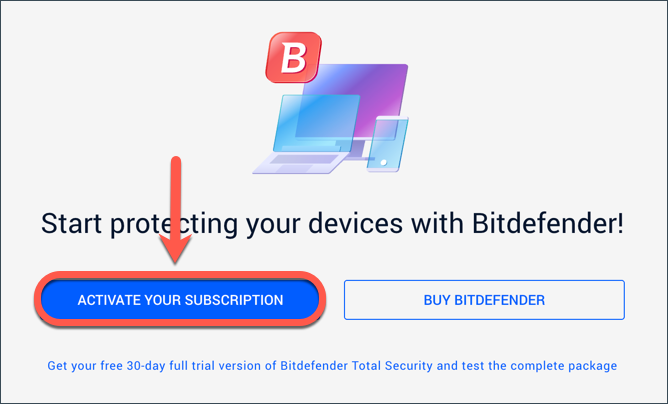
2. If you have no active subscription in your Bitdefender Central account, as soon as you sign in you’ll be prompted to activate a new subscription or buy Bitdefender. Click ACTIVATE YOUR SUBSCRIPTION.
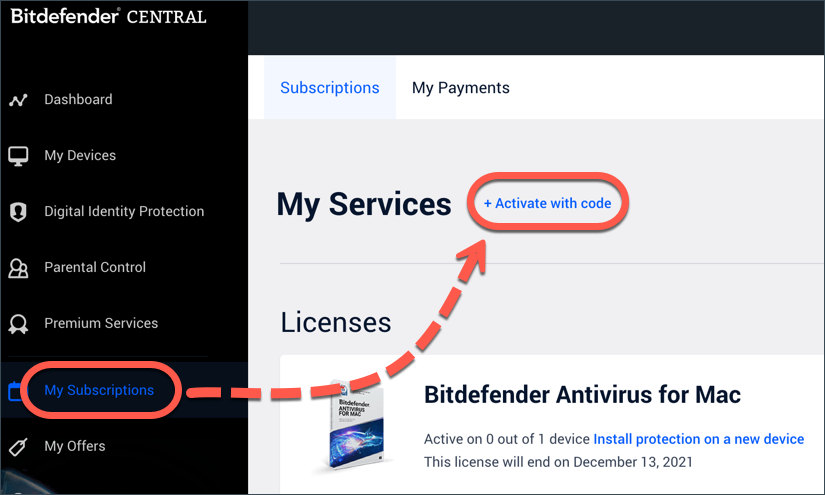
3. If you already have an active subscription in your Bitdefender Central account, go to My Subscriptions on the left of the page. Then click + Activate with code.
4. Enter the new activation code you received by email or from your provider.
If you bought Bitdefender directly from the Bitdefender website, enter the activation code in the confirmation email you received after purchase. This code may be under the line “Would you rather use an activation code instead?” In the image below, the code is labelled IOTESTCODE.
If you bought Bitdefender from a retailer, you’ll find the activation code printed on a card inside the Bitdefender software box.
5. Enter the activation code and click ACTIVATE to continue.
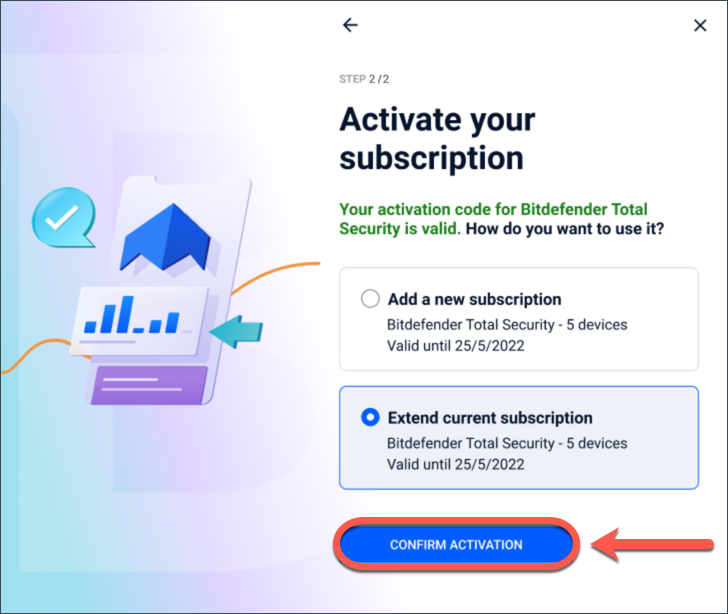
6. If a message appears, choose how you want to use the code, then click CONFIRM ACTIVATION.
For example, you can choose Add a new subscription or Extend current subscription. The second option is only available if one of your existing subscriptions is the same as the new one you’re trying to add.
Method 2: Activate via the email link
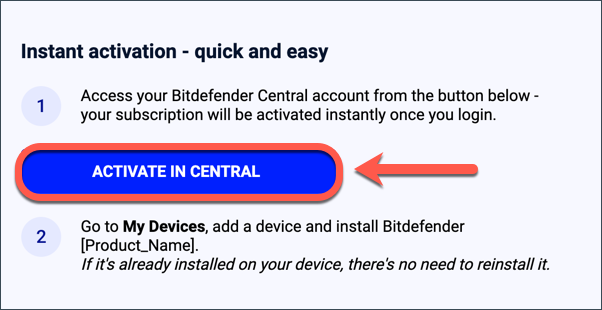
1. Open the confirmation email Bitdefender sent after your online payment and click ACTIVATE IN CENTRAL.
2. You’ll be redirected to the Bitdefender Central website. Sign in to your Bitdefender Central account or create a new one if you don’t have one.
3. If a message appears, choose how you want to use the code, then click CONFIRM ACTIVATION.
For example, you can choose Add a new subscription or Extend current subscription. The second option is only available if one of your existing subscriptions is the same as the new one you’re trying to add.