


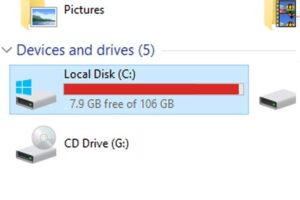
If you message and chat a lot with friends or customers, you’ll notice your C: drive filling up over time.
The cause is Zalo’s sync data, especially if you often send large files such as videos, images or audio.
Zalo taking up a lot of the C: drive and filling it up seriously affects your computer’s performance.
So how do you fix this?
Here are a few options:
- Partition the hard drive: you can create more partitions on your C: drive to store more data without affecting the operating system. To partition a drive you need IT knowledge and careful steps, because otherwise you could damage the drive or lose data.
- Switch to Zalo Web: use Zalo in your web browser without installing the app. However, this doesn’t have all the features and data of the app – for example, you can’t make video calls, send files or sync messages with your phone.
- Move Zalo’s sync data folder to another drive: this is the best option and the one this article shows you. This frees up space on the C: drive without affecting Zalo’s features and data.
How to move Zalo PC data to another partition
NOTE:
– Before you start, close the Zalo app completely.
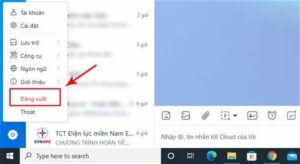
Step 1:
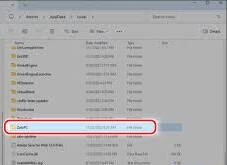
Open the folder that holds Zalo’s sync data.
By default, Zalo’s sync data is at:
C:UsersXXXAppDataLocal (where XXX is your Windows username – if you don’t know it, just open each user folder to check).
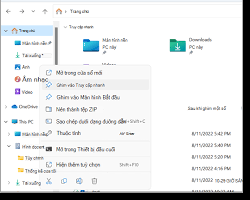
To open the ZaloPC folder, open File Explorer and type %localappdata% in the address/search bar.
Step 2. Next, copy this ZaloPC folder to the partition you want to move it to (one with plenty of free space) – for example the D: or E: drive.
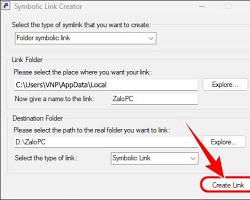
Step 3. Now rename the ZaloPC folder on the C: drive to something else – for example ZaloPC.bak.
Step 4: Run CMD as Administrator, then run the command below.
mklink /j C:UsersxxxAppDataLocalZaloPC path-to-the-newly-copied-folder
You can copy the code below and change the D:ZaloPC path to match your drive letter.
mklink /j %localappdata%ZaloPC D:ZaloPC
Step 5. Now open Zalo again to check the result.
If everything still works normally, you can delete the ZaloPC.bak folder on the C: drive to free up space.